


Keeper Password Manager
4.723.55K Reviews
App Specs
- Version
- Varies with Device
- Updated On
- License
- Free
- Downloads
- 10,000,000+
- Developer
- Keeper Security, Inc.
- Categories
- Productivity
- Platform
- Android
Screenshots
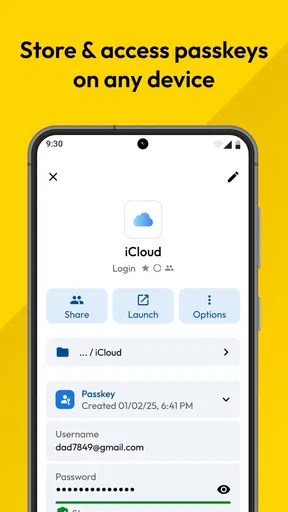
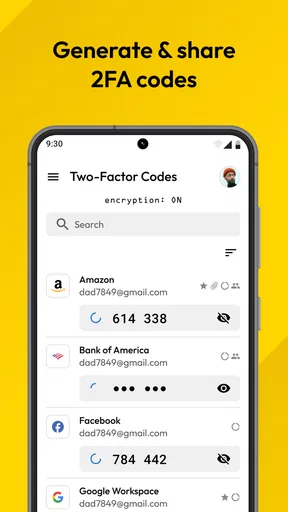
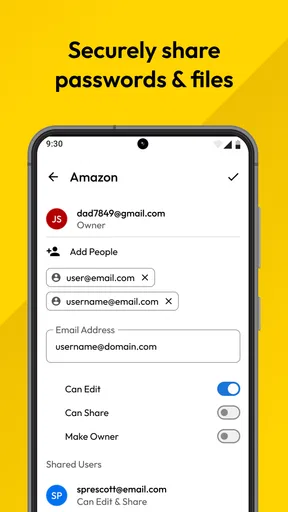
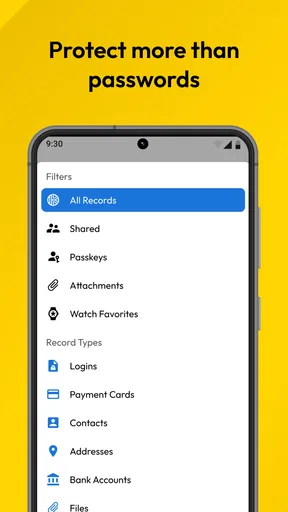
 Analysis by AppCompare
When I decide whether to trust a password manager, I look beyond how quickly it fills in a login. I want to know what job it does in my daily routine, what choices I have when handling sensitive records, and whether its convenience is worth making one app the keeper of many credentials. Keeper Password Manager is a productivity app from Keeper Security, Inc. Its appeal is straightforward: it brings passwords and other private information into one place, while adding tools intended to make sign-ins less of a chore.
That central role is also the main trade-off. A vault can reduce the temptation to reuse passwords, but it becomes important to choose a strong master password and treat access to your account carefully. I would not install any password manager and immediately move every important login into it without first understanding how I want to organize and recover access to my records. A little setup thought can prevent a lot of friction later.
What trust looks like in day-to-day use
Keeper has a 4.7 average from around 109,000 ratings, and it has been installed over 10 million times. Those figures tell me that many people use it, but popularity alone does not prove that an app is right for my security needs. I’d treat them as a reason to consider it, not as a substitute for reading the account and privacy choices presented during setup and making my own decision.
The app is free to install and rated for Everyone, with in-app purchases ranging from $9.99 to $239.99 per item. That makes it sensible to check which tools and plan options are available to me before building a workflow around a feature I may later find is paid. If I only need a password vault, I’d start with the basic experience and decide whether additional services are useful rather than assuming every capability comes at no cost.
Getting Started with Keeper Password Manager
First off, setting up Keeper Password Manager was a breeze. The app is available on both Android and iOS, and downloading it from the app store took no time at all. Once you’ve got it installed, you’re greeted with a clean and intuitive interface. I’m not a tech wizard, but even I found it super user-friendly. The initial setup involves creating a master password—this is the one password you actually need to remember, so make it count!
I’d make that first login a deliberate moment rather than something I rush through while distracted. A password manager is only as useful as the routine I build around it: saving a new credential as soon as I create an account, giving records clear names, and checking that the stored details are current. If I postpone all that housekeeping, the vault may end up containing duplicates or outdated logins, and autofill becomes less helpful.
Features That Stand Out
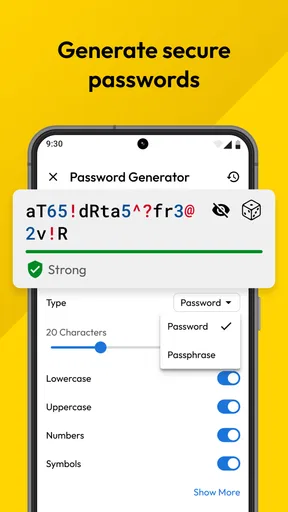
Once you’re in, the app offers a slew of features designed to keep your digital life organized and secure. One of my favorites has to be the password generator. Seriously, this thing is a lifesaver for creating strong, unique passwords for every account. No more "123456" nonsense. Plus, the app safely stores all these passwords for you, so you’ll never have to worry about forgetting them.
Worth Reading Before You Choose

EA SPORTS FC Mobile 26 Is a Bigger Football Game, but It Takes Time

Flipboard Shows What News Apps Must Do Beyond the Feed

Switching to Android Auto Means Rethinking Your Driving Routine

Google Calendar Makes a Crowded Week Easier to Manage

Ludo King Makes the Most of the Minutes Between Plans

Baby Panda World Brings Quick Play to Modern Phones, but Its Game Library Feels Busy
A useful workflow is to use the generator when changing a password, then save the replacement straight into the matching record before leaving the website or app. That avoids the awkward gap where a new password exists only in my clipboard or memory. I’d also keep an eye out for services that impose unusual password rules; if a site rejects a generated password, adjust it to fit that site rather than repeatedly trying the same string.
Another cool feature is the secure file storage. You can keep sensitive documents, photos, and other files safe and sound within the app. It’s like having a virtual vault right in your pocket. And speaking of security, Keeper uses top-notch encryption, so you know your info is locked down tight.
Files and passwords serve different purposes, so I would not treat the vault as a reason to stop keeping ordinary copies of documents I may urgently need. Before placing a particularly sensitive file in any digital vault, I’d consider who might need it, how quickly I would need to retrieve it, and whether storing it alongside my account credentials makes sense for me. That is a practical boundary, not a reason to avoid the feature entirely.
Usability and Performance
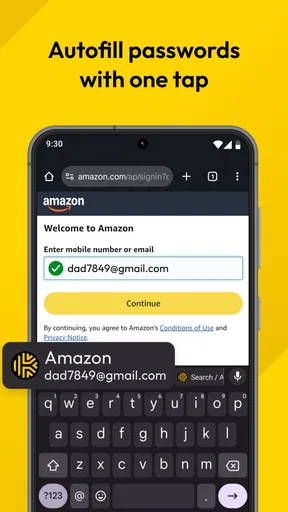
I’ve been using the app for a couple of weeks now, and the performance has been rock solid. There’s no lag when switching between features, and everything loads quickly. The autofill feature is particularly handy—it’s integrated with most browsers and apps, filling in your login details with just a tap. Talk about a time saver!
Autofill is most valuable when I’m signing in repeatedly on a phone, where switching apps to retrieve a long password is especially irritating. It can still take a moment to choose the right record if I have multiple accounts for the same service, so descriptive labels matter. I’d name entries by purpose—such as personal or work—rather than relying on a site name alone when both logins look alike.
A realistic example is paying a bill while away from home. I can open the provider’s app, select the appropriate saved login, and avoid typing a complex password on a small screen. If autofill offers the wrong account or does not appear in a particular sign-in flow, I’d pause and check the saved entry instead of accepting a near-match. That small habit helps prevent a convenience feature from becoming a source of accidental account confusion.
The app also offers biometric login options, like fingerprint and face recognition. If you’re like me and tend to forget passwords or just hate typing them out, this feature is a godsend. It keeps everything seamless and secure.
Biometrics make frequent access easier, but I still see the master password as the foundation of the account rather than something to neglect. I’d choose a memorable, hard-to-guess password and make sure I can access it when I genuinely need to sign in again. Anyone sharing a device should also think carefully about who can unlock that device and whether opening the vault with its biometric access fits their situation.
How it fits alongside other options
Compared with keeping logins in a browser or relying on the phone’s built-in password saving, Keeper asks me to adopt a more intentional, dedicated vault. That can be worthwhile if I want passwords and sensitive files managed together, or if I regularly move between different devices and services. A browser’s built-in option may be simpler for someone who stays in one browser and only needs basic sign-in convenience; adding a separate manager is not automatically better if I will not maintain it.
Likewise, a notebook or a document of passwords may feel familiar, but it makes updating and finding the right credential more manual. Keeper’s generator and autofill reduce that work, while its central vault means I must be comfortable depending on an account and remembering its master password. I would choose the approach I can use consistently, not the one with the longest feature list.
Plans, fit, and practical limits
The app is free to download, but optional purchases mean I would check the current plan details before assuming that every feature I want is included. The listed purchase range is broad, so the important question is not simply whether there is a paid option; it is whether a specific extra solves a real problem for me. I would begin by identifying my needs—password storage, file storage, or monitoring—and compare those needs with what is available in the app before paying.
The store summary highlights dark web monitoring, but I would treat monitoring as an alerting aid rather than a replacement for good account habits. If I receive a warning, the useful response is to review the affected login, change its password, and avoid reusing that replacement elsewhere. The alert itself does not make an account safe if I ignore it or continue using the same weak credential.
Keeper is a stronger fit for people who have many accounts, often sign in on mobile, and are willing to spend a little time keeping their vault tidy. It may also suit someone who wants private files close to their login records. I would hesitate to recommend it to a person who strongly prefers not to put credentials in a dedicated online service, who rarely uses more than a handful of accounts, or who will not remember a master password and keep their account access organized.
Why You Might Love It
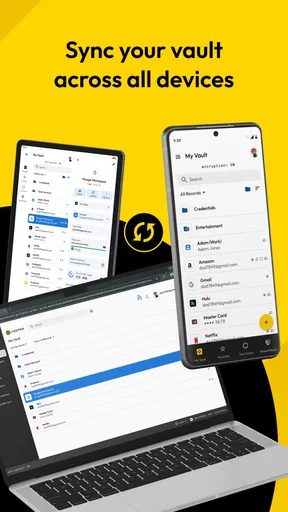
If you’re someone who values security and convenience, Keeper Password Manager is a must-have. It’s not just about storing passwords; it’s about creating a secure digital environment where you can manage all your sensitive information with peace of mind. Plus, the app offers cross-platform syncing, so your data is accessible on all your devices. Whether you’re on your phone, tablet, or computer, Keeper has you covered.
That flexibility is especially useful if I start a task on one device and finish it on another, but it also makes account choices worth considering across the whole routine. I’d sign in on my own devices, check that I know how to reach my records when switching devices, and avoid assuming that an app’s presence on multiple platforms removes the need to manage account access. A password manager should simplify my life, not leave me unsure where the only copy of an important login lives.
On Android, the minimum operating system requirement is version 9. I’d check that before planning to use Keeper on an older phone, since an app that cannot run on the device is no help in an urgent sign-in. The same practical check applies before relying on any password manager as the sole place I keep credentials: confirm that the devices I actually use can access it and that I’m comfortable with the sign-in process on each one.
A cautious verdict
All in all, I’m pretty impressed with what Keeper Password Manager brings to the table. It’s packed with features that make managing passwords and sensitive info a breeze, and the added security is a huge plus. If you’re tired of the password juggling act, do yourself a favor and give Keeper a try. Trust me, your future self will thank you.
My recommendation comes with one condition: use the convenience to build better habits, not to stop paying attention. I’d generate distinct passwords, keep records clearly labeled, and take a moment to confirm the right account before autofill submits anything. Those steps make the app more useful and help me stay in control of the choices that matter.
So, have you tried Keeper yet? If not, what are you waiting for? Head over to your app store and get started on making your digital life a whole lot easier and more secure!
Pros
- Strong encryption ensures data safety.
- Easy-to-use interface for all users.
- Cross-platform sync for seamless access.
- Secure file storage included.
- Biometric login for added convenience.
Cons
- Premium features require subscription.
- Limited free version capabilities.
- Occasional sync issues reported.
- Setup can be time-consuming.
- No offline access to stored data.
FAQs for Keeper Password Manager
What platforms does Keeper Password Manager support?
Keeper Password Manager is available on multiple platforms, ensuring seamless access across all your devices. It supports Android and iOS for mobile, alongside desktop versions for Windows, macOS, and Linux. Additionally, Keeper offers browser extensions for Chrome, Firefox, Safari, and Edge, making it versatile for any user.
Is Keeper Password Manager secure?
Yes, Keeper Password Manager prioritizes user security. It uses AES-256 bit encryption, two-factor authentication, and zero-knowledge architecture, meaning only you have access to your information. Keeper also regularly undergoes third-party audits to ensure its security measures are updated and effective, providing peace of mind to its users.
Can I share passwords with other users on Keeper?
Absolutely. Keeper Password Manager allows you to securely share individual passwords or entire folders with trusted contacts. This feature is particularly useful for teams or families, as it ensures everyone has access to necessary credentials without compromising security. You can manage permissions to control who can view or edit shared items.
Does Keeper offer a free version?
Keeper Password Manager offers a free trial period for new users to explore its features. However, to access its full range of capabilities, including unlimited password storage and device synchronization, a paid subscription is required. Keeper does offer different pricing plans to suit individual, family, or business needs.
How does Keeper handle data breaches?
In the event of a data breach, Keeper Password Manager provides tools to quickly identify and change compromised passwords. It also includes a BreachWatch feature that continuously scans the dark web for potential threats to your stored credentials. This proactive approach helps users maintain their account security at all times.


